Take a breath — in the vast majority of cases everything is fine, you just need to understand how PixGo's clock works. Before opening a ticket or getting anxious, follow this guide. In less than 5 minutes you'll know if it's just normal timing or if there's actually something to investigate.
- PixGo runs on D+1 calendar days (includes Saturday, Sunday and holidays)
- Run the 4-step checklist below before opening a ticket
- Got the deposit ID? Paste it in Naka chat — she fetches real-time status in seconds
- Status "MED" + dispute email? Jump to the defense flow at the bottom (becomes
refundedonly if you lose)
First: what day is it?
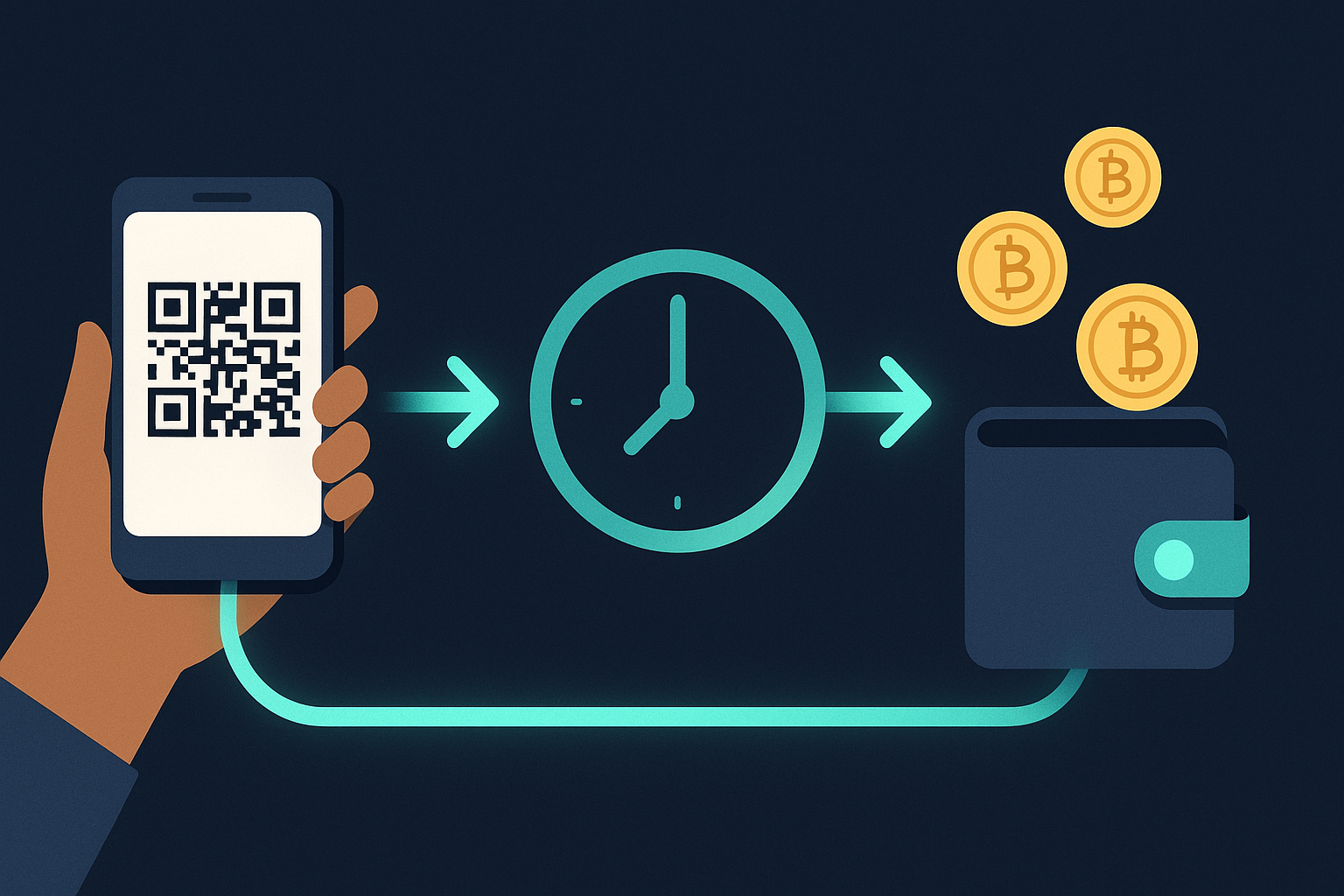
The D+1 rule sounds simple but confuses beginners: DEPIX lands in your wallet by the end of the day after the payment. Not instant. And there's no fixed time of day — it might arrive at 9am, 3pm or 11pm. The rule is "before 23:59 of the next day".
There's no D+0 mode on PixGo: the PIX is confirmed instantly, and sending DEPIX to your wallet follows PixGo's D+1 rule. And "next day" means a regular calendar day — Saturday, Sunday and holidays all count.
| Customer paid on… | DEPIX arrives by… |
|---|---|
| Monday | Tuesday (by 23:59) |
| Tuesday | Wednesday (by 23:59) |
| Wednesday | Thursday (by 23:59) |
| Thursday | Friday (by 23:59) |
| Friday | Saturday (yes, Saturday!) |
| Saturday | Sunday |
| Sunday | Monday |
| Day before holiday | The holiday (holiday counts as a day) |
First check: status on the Dashboard
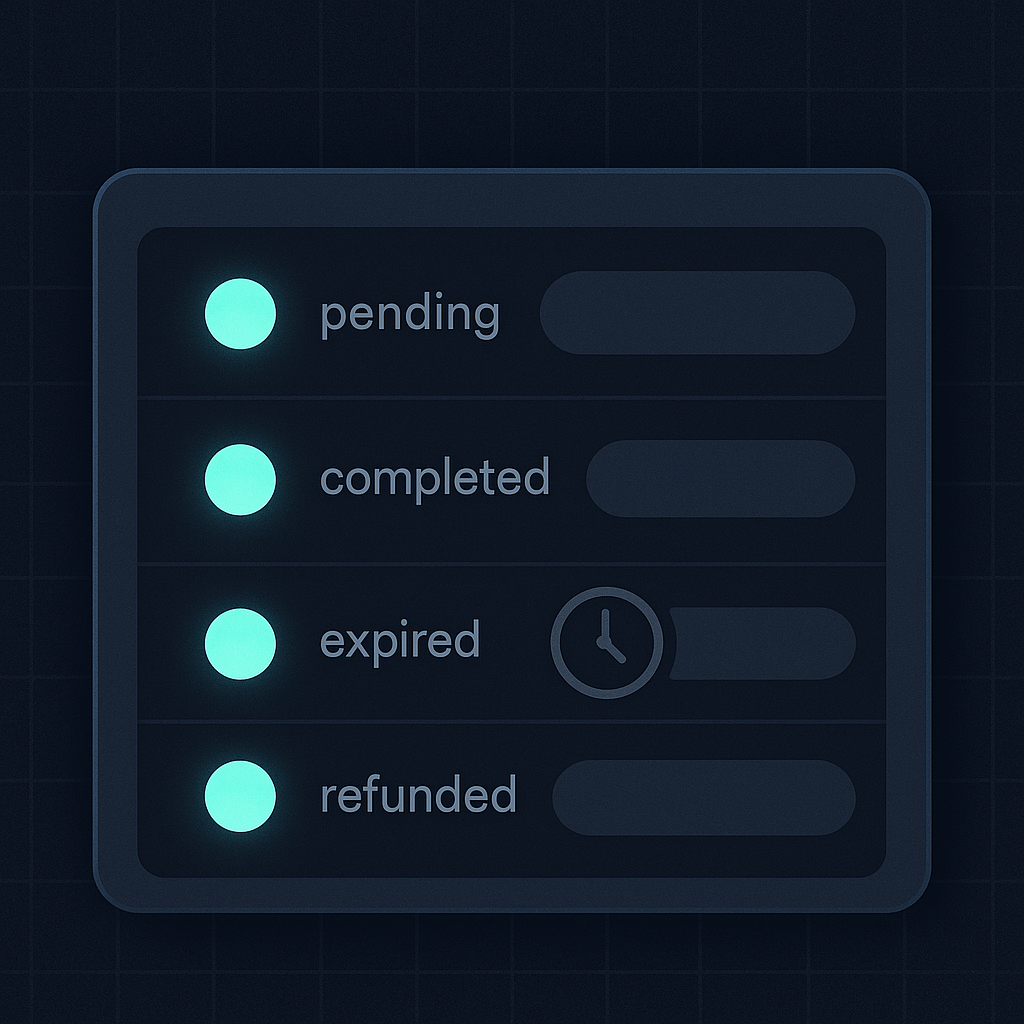
The Dashboard shows everything you need. Log in at https://pixgo.org/dashboard. Each transaction shows one of the 4 statuses below — knowing which one is step zero of the investigation.
What each status means
- pending — the system saw someone scan your QR, but PIX is not yet processed. Normal for a few minutes. If it stays pending for over an hour, the customer probably gave up (and in ~20min it moves to expired).
- completed — PIX confirmed! Customer paid and the system recognized it. Now just wait for D+1 settlement.
- expired — QR Code expired without payment. Charge QR (Gerar Cobrança, My Store or API) expires in 20 minutes; on the recurring checkout the timer is 30 minutes. Once expired you can't reuse it — generate a new one.
- MED — the customer opened a dispute with their bank and the case is under review. You have 5 business days to reply to the email with your defense. See the MED section below.
- refunded — payment was definitively reversed. Could be voluntary refund (you asked for it) or final MED verdict against you. For MED, see the dedicated section below.
4-step diagnosis checklist
Step 1: Check the status
Your transaction needs to be in completed for you to wait on D+1. How to find:
- Log in at pixgo.org/dashboard
- In the recent transactions list, find the relevant sale (use date and amount to identify)
- Look at the Status column on the right
If it's pending for under an hour: wait, the bank system can take time to confirm. If completed: just wait for D+1. If expired but the customer swears they paid, read the "Cases where DEPIX won't arrive" section below.
Step 2: Get the deposit ID (super useful)
Every deposit has a unique 32-character hex ID (with or without hyphens — the system accepts both). With it you can check real-time status via Naka chat without opening a ticket.
How to find the ID:
- On the Dashboard, find the transaction in the list
- Click the magnifier icon next to the transaction (or the details button)
- A modal opens with details — the Deposit ID is shown prominently, format like
019c8b91-49ec-7433-a506-5b834cb45ccc - Click the copy icon (📋) to copy it
Step 3: Verify your PixGo Wallet in Profile
DEPIX is a stablecoin that lives on the Liquid Network (a Bitcoin sidechain). To receive it, you need a Liquid address registered and validated in your PixGo Profile. Without it, DEPIX stays in custody and goes nowhere.
How to confirm everything is set:
- Go to https://pixgo.org/perfil
- Find the My Liquid Wallet section
- The registered address must start with
lq1...orVJL...(the two valid Liquid formats) - It must show "Validated" ✅ next to it
- You registered an address from another chain: Bitcoin (
bc1...), Ethereum (0x...) or other. DOES NOT work for DEPIX. - You registered the address but never clicked "Validate".
- You switched wallets recently and forgot to update the address.
- Address with typo/incomplete (be careful on mobile copy-paste).
No Liquid wallet yet? Use the PixGo Wallet — official, free, secure, multi-chain (10 networks, including Liquid and Bitcoin) and built specifically for PixGo users:
- Visit https://wallet.pixgo.org in your browser or install the Android app
- Click "Create Free Wallet" and then "Generate My Wallet"
- The system generates a 12-word seed phrase + addresses for all supported networks
- Write the 12 words on paper and store somewhere safe (no photo, no digital storage — it's the only key to recover everything)
- Set a strong password to unlock the wallet (8+ chars with uppercase, number and symbol, or 12+ chars with two of those three), check "I saved my recovery phrase…" and click "Save and Continue"
- In My Wallet, in the Networks list, select Liquid (in a new wallet, it sits under "Other networks")
- Click "Receive" → "Copy Address" (
lq1...) - Paste it in your PixGo Profile at pixgo.org/perfil → Save Wallet → Validate Wallet → check "I declare I checked the address above" → Confirm Validation
Step 4: DEPIX arrived but you can't see it?
Sometimes the token is there, you just can't see it due to display settings. On PixGo Wallet:
- Network selector at the top: make sure it's on Liquid Network. If on Bitcoin, Ethereum or another chain, DEPIX won't appear — each chain only shows its own assets.
- Default balance in USD: the wallet shows the total value converted to dollars. To see in DEPIX/BRL, switch to the Liquid network in the selector.
- Slow sync: first time you open it, takes 3-8 seconds to scan the blockchain. Wait, or pull-to-refresh.
- "Balance fluctuates": the USD value changes in real time as USD/BRL rate moves — your tokens are safe, it's just display conversion.
"MED" status + dispute email: what is this?
MED stands for "Mecanismo Especial de Devolução" (Special Refund Mechanism). It's a right the customer has to dispute the PIX payment with their bank within up to 80 days, alleging some problem (fraud, didn't receive the product, etc).
When this happens, you (seller) get a system email notifying you of an open dispute on one of your sales. The transaction status on the Dashboard changes to MED — stays "under review" while the case is evaluated. Important: at this point the status is MED, NOT refunded. It becomes refunded only if the final verdict goes against you (then DEPIX goes back to the payer). If you win the defense, it returns to completed.
What to do when you get a MED email
- Reply within 5 business days. Standard MED timeline — past that, your defense is considered invalid and the chargeback is auto-confirmed, possibly leading to account suspension on repeat cases.
- Gather ALL evidence proving the sale was legitimate:
- Invoice or receipt
- Delivery proof (courier tracking, photo of delivered product, shipping receipt)
- Screenshots of your conversation with the customer (WhatsApp, Instagram, etc.)
- Screenshot of the order/checkout they placed
- Any other evidence of real agreement and fulfillment
- Reply directly to the MED email, with the evidence attached (not through the ticket system). Open a ticket about MED only if you didn't get the email — check spam and trash first.
- Wait for the review. The payer's bank decides — process usually takes 5 to 15 business days. NO fixed deadline.
Common MED questions
- "Can I recover the money later?" Yes, if the review concludes in your favor the sale goes back to
completed. Track it via the email and the Dashboard. - "Is MED a PixGo thing?" No. PixGo only processes the PIX — MED is regulated by the Central Bank of Brazil and executed by PSPs (Payment Service Providers). PixGo notifies you and helps you defend, but the final call is the bank's.
- "How long does the customer have to open MED after payment?" Per current BCB rule, up to 80 calendar days. So it's worth keeping receipts of each sale for at least 3 months.
- "Can I ask for the CPF of the customer who opened MED?" No — PixGo receives payer data masked by LGPD/BCB. You don't have access to the full CPF.
Cases where DEPIX truly won't arrive
3 situations where waiting won't fix — DEPIX isn't coming and you need to understand why:
1. "MED" status (dispute under review) or "refunded" (refund confirmed)
As explained above, could be MED (still under review) or a confirmed refund. With MED, the amount is on hold until the verdict; with refunded, the amount is returned to the payer. For defense details, read the MED section above or open a ticket.
2. "expired" status but PIX was debited
Scenario: customer paid an expired QR (rare since banks usually block, but happens). What happens:
- If the customer's bank blocked the PIX before debit: no problem, money didn't leave their account.
- If the bank debited even with QR expired: the value automatically returns to the payer's account within 48 hours. They don't need to do anything — automated BCB process. And you DON'T receive DEPIX in this case.
If 48 hours passed and the customer swears the money didn't come back, they should open a ticket with THEIR bank (not PixGo — issue is with the payer's PSP).
3. No Liquid address registered or invalid in Profile
Without a validated Liquid address, DEPIX stays in internal custody. Goes nowhere until you register one. Fix:
- Create or open your PixGo Wallet and copy the Liquid address (Liquid Network → Receive)
- Go to https://pixgo.org/perfil
- Paste the address (
lq1...format) and click Validate - After that, the custody DEPIX is released to your wallet (may take a few hours to process in batch)
When NOT to open a ticket
- Less than D+1 since payment and status is
completed→ all good, just wait - You have the deposit ID → paste in Naka chat, faster solution
- QR Code expired and customer didn't pay → generate a new one, that's normal
Opening a ticket in these cases doesn't speed anything up and delays people with real issues (team handles by arrival order). Use Naka chat for quick lookups — saves your time and the support team's.
When to OPEN a ticket
- Status
completed+ more than D+2 passed (over 2 days) without DEPIX landing in the validated wallet - Status
MED, but you didn't get the dispute email (check spam and trash first) - Dashboard shows a different amount than the customer paid
- Liquid address can't be validated for some technical reason
- Any case involving inactive or suspended account
How to open a ticket: go to pixgo.org/chamados → "New Ticket" → pick the category → attach deposit ID + amount + date + any screenshot that helps. The more info you give in the first message, the faster the team can resolve.
Final summary
90% of "PIX paid, DEPIX didn't arrive" cases are normal D+1 — just wait until end of next day. Of the remaining 10%, most is unregistered Liquid address or reversed payment. Use deposit ID + Naka chat to find your case in seconds. And if it's MED, defend with evidence within 5 business days, replying to the email.
Related reading: How PixGo D+1 works · MED — full defense guide · Can't log in / inactive account